The Fee Plans module is the architectural foundation of your billing system. Before you can bill a student or collect revenue, you must define what you are selling. This page allows administrators to create reusable pricing templates that dictate pricing, taxation, and billing frequency.
The interface is divided into two primary tabs: Recurring Plans and One-Time Fees.
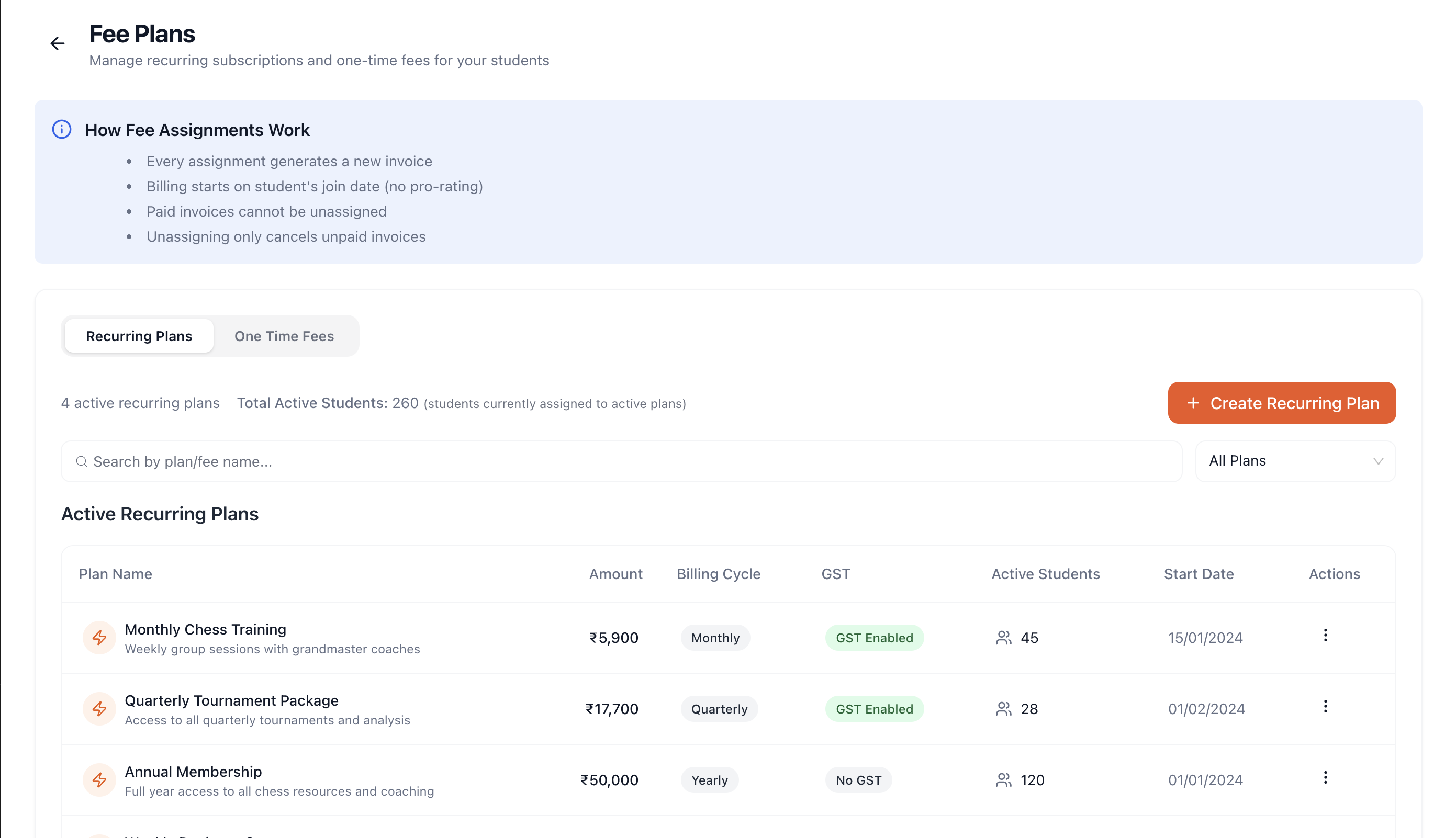
Tab 1: Recurring Plans
Recurring plans are the lifeblood of subscription-based businesses. They are designed for ongoing services like weekly group classes, 1-on-1 coaching, or annual memberships.
Creating a New Recurring Plan
When an administrator clicks the primary Create Recurring Plan button, they are taken to a detailed form builder.
1. Basic Information
Plan Name: A clear, descriptive title visible to both admins and students (e.g., "Intermediate Chess Mentorship").
Description (Optional): Additional context explaining what the plan includes (e.g., "Includes 8 classes per month, weekly assignments, and tournament entry").
2. Pricing & Taxation
Amount (₹): The base price of the service before any taxes are applied.
GST Enabled Toggle: By flipping this switch, the system enables automated tax calculations.
GST Percentage: Once enabled, the admin inputs the tax rate (standard is often 18%).
Note: If the base amount is ₹1,000 and GST is 18%, the system will automatically calculate the final display amount and invoice total as ₹1,180. The student will always see the fully burdened cost.
3. Billing Cycle Configuration
This is the most critical setting, determining how often invoices are generated automatically:
Monthly: Bills the student on the same day every month.
Quarterly: Bills every 3 months.
Yearly: Bills every 12 months.
Custom: Selecting this opens a new field allowing the admin to input any integer from 1 to 24, representing the interval in months (e.g., entering '6' creates a bi-annual billing cycle).
Important Warning: The system enforces a strict rule to protect historical data. If you edit an existing plan later (e.g., changing it from Monthly to Quarterly), this change will only apply to new students assigned to the plan. Existing students will continue on their original Monthly schedule unless their subscription is manually cancelled and recreated.
Tab 2: One-Time Fees
Not everything is a subscription. One-Time fees handle ad-hoc charges that do not repeat.
Creating a One-Time Fee
The creation process is identical to Recurring Plans regarding Basic Information and Pricing/Taxation. However, instead of a Billing Cycle, the admin selects a Category.
Categories might include: "Registration", "Equipment Purchase", "Tournament Entry", or "General".
This categorization helps immensely later when filtering revenue reports or searching through massive lists of invoices.
Managing Active Plans
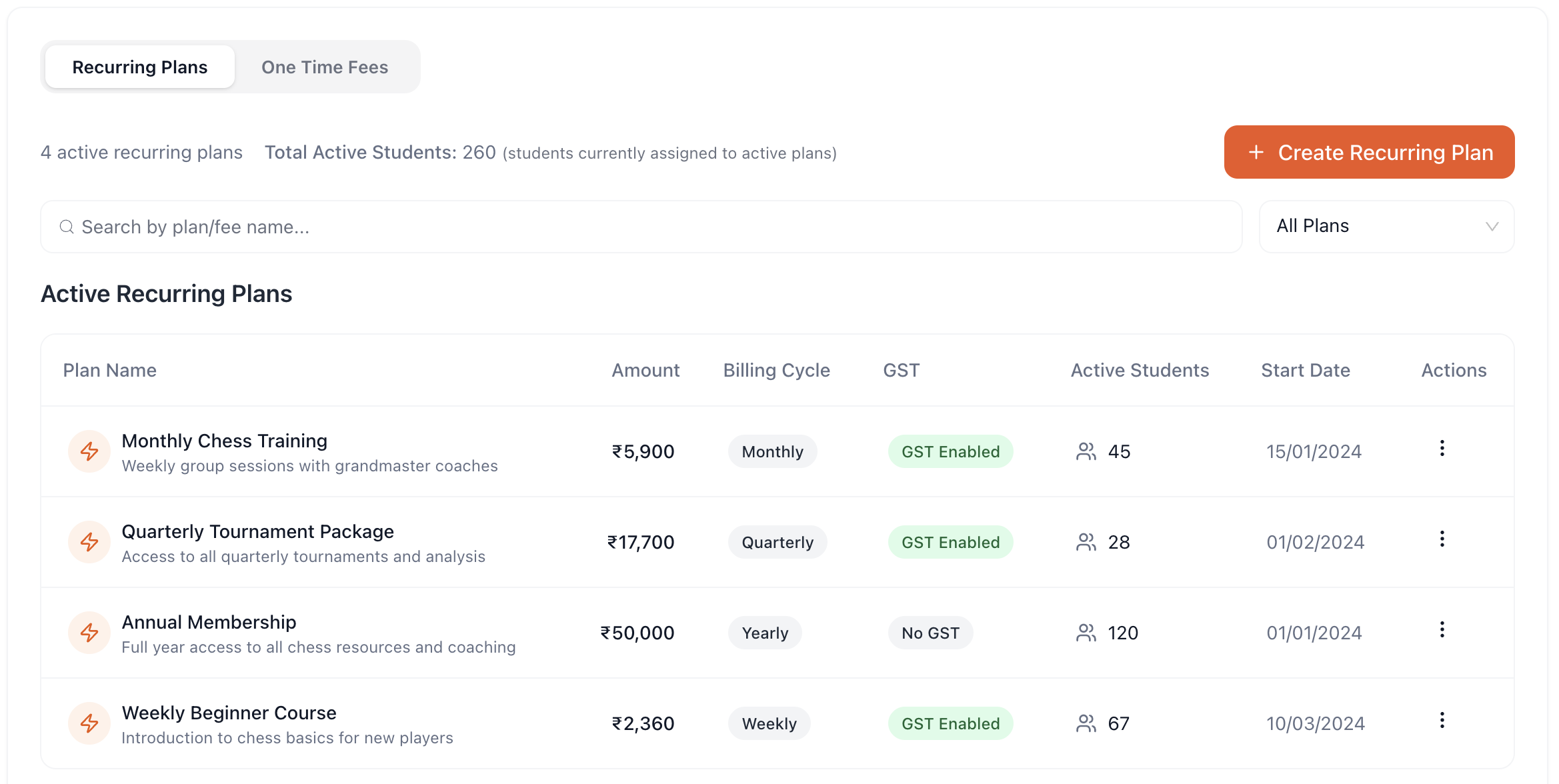
Back on the main Fee Plans list, both tabs present data in a powerful Data Table.
Information Displayed
Plan Name & Description
Amount: Displays the final calculated amount (including GST).
Billing Cycle / Category
GST Badge: A quick visual indicator (Green for Enabled, Grey for Disabled).
Active/Assigned Students: A live counter showing exactly how many students are currently enrolled in this specific plan.
The Actions Menu (The 3 Dots)
By clicking the actions menu on any specific plan, administrators have four powerful tools:
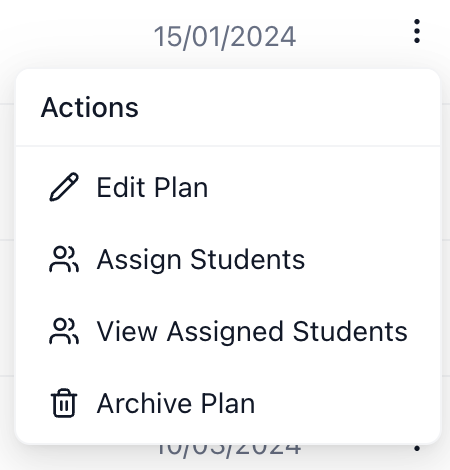
Edit Plan
Opens the form to modify the name, description, amount, or GST. As noted above, core billing cycle changes will not retroactively affect existing subscribers.
Assign Students (The Enrollment Process)
This is how students get billed.
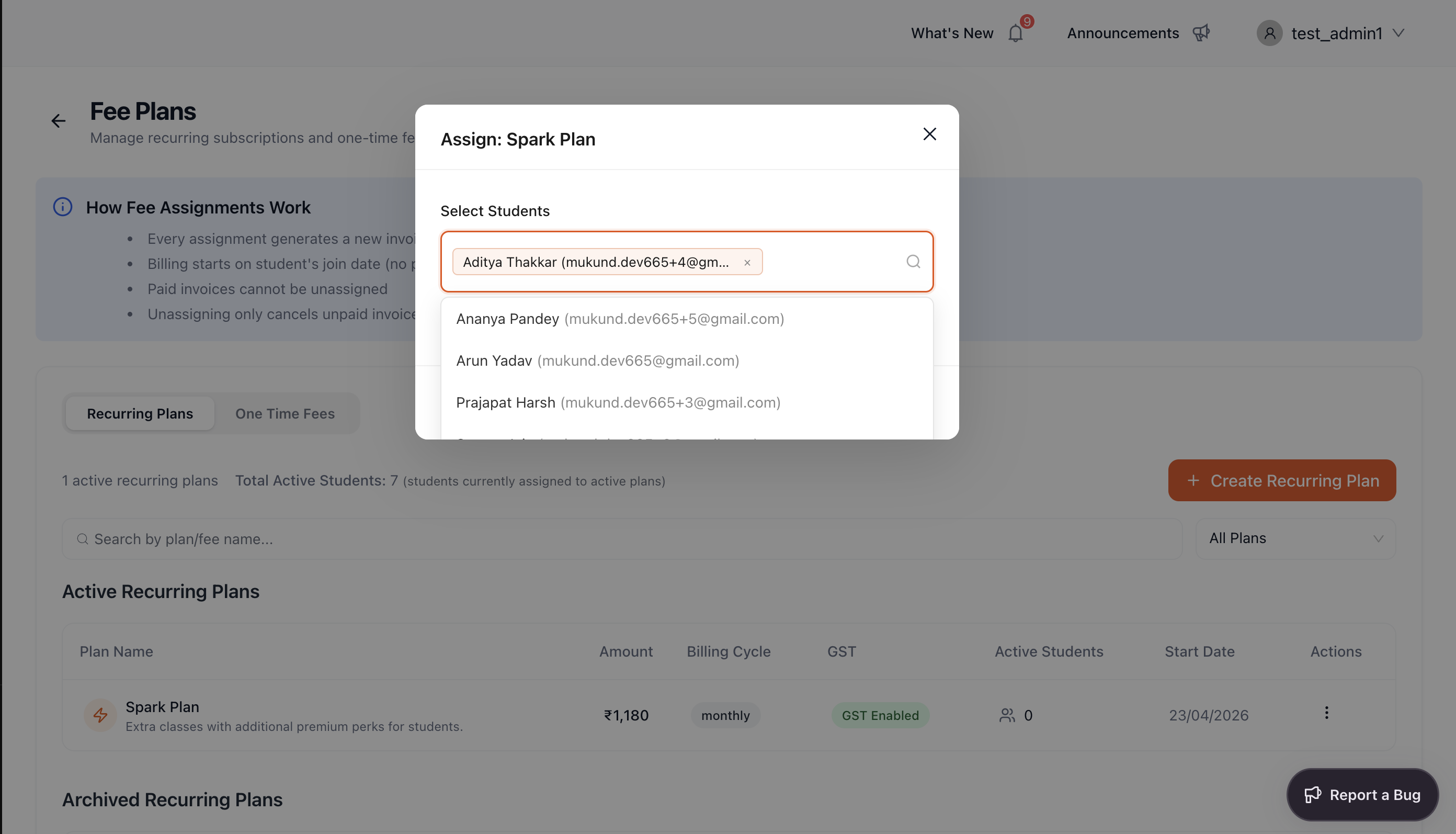
Clicking this opens the Assign Students Modal.
The admin is presented with a searchable, multi-select list of all active students in the organization.
The admin can select one, ten, or a hundred students at once.
What happens behind the scenes: The moment the admin clicks "Confirm Assignment", the system generates Subscriptions for those students, and instantly fires off their first Invoices.
View Assigned Students
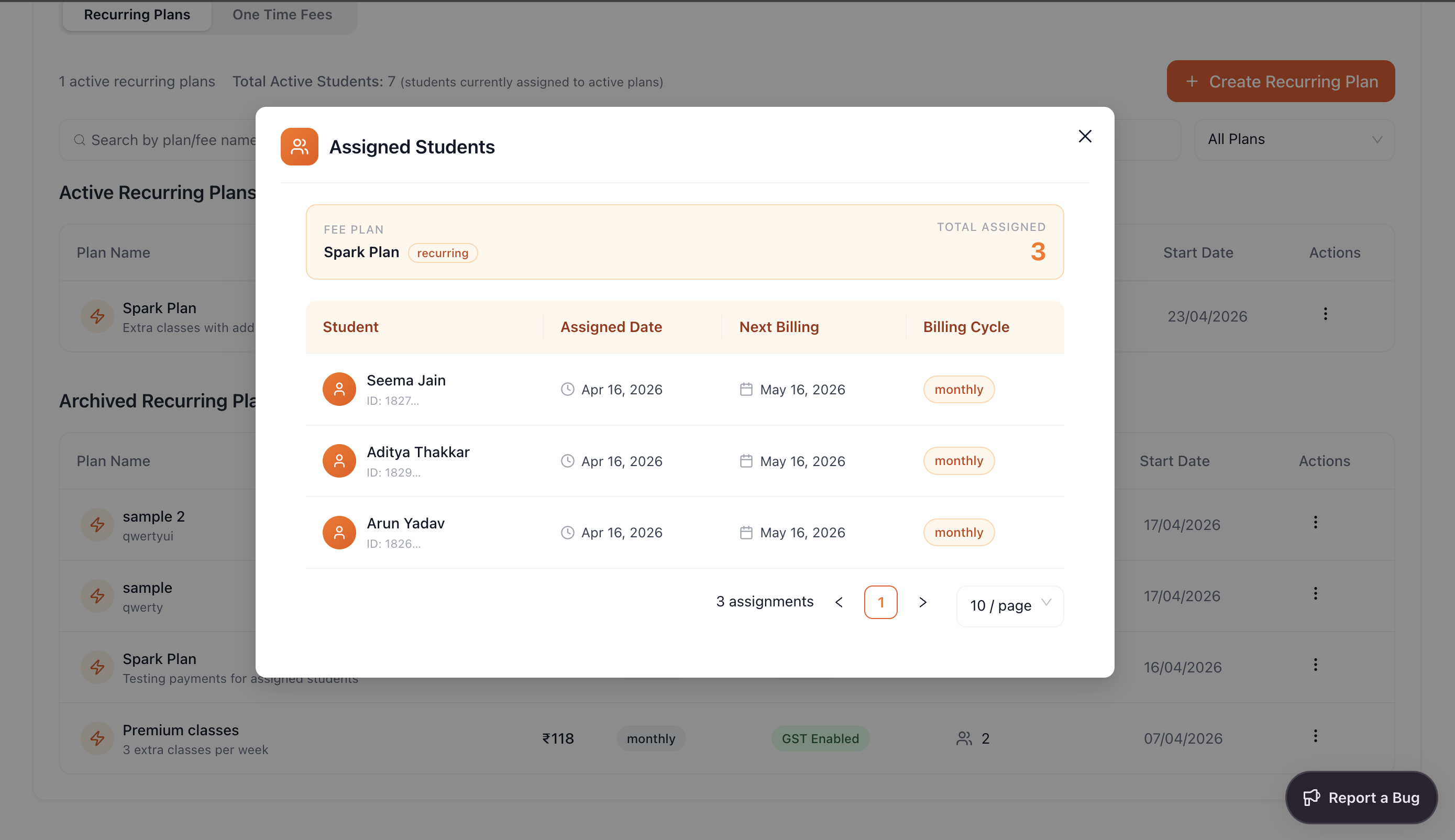
Opens a modal displaying a neat list of everyone currently enrolled in the plan. This is useful for auditing ("Who exactly is paying for the Premium tier?").
Archive / Unarchive Plan
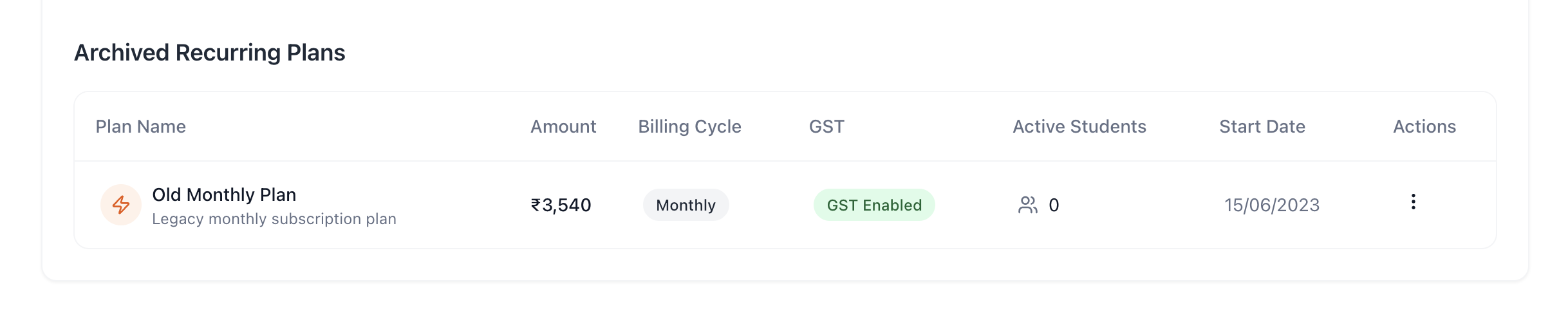
Over time, pricing changes. You might want to stop selling the "2023 Legacy Plan" but you don't want to delete it entirely, as that would break financial records.
Archiving a plan hides it from the default view and prevents any new students from being assigned to it.
Crucially: Archiving a plan does not cancel the subscriptions of students already on it. They will continue to be billed normally until they are manually cancelled from the Subscriptions page.
Archived plans drop to a separate "Archived Plans" table at the bottom of the page, where they can be Unarchived at any time.